Taskavel · iPhone
Taskavel is a separate service for organizing work
into projects, boards and tasks. Octo connects to it
so Taskavel tasks can sit alongside your mail and
calendar, new tasks can go to a chosen project, and
selected boards can provide task updates.
Why does Octo integrate with Taskavel?
Taskavel supplies the project and board organization
and the connection interface used by this
integration. You can keep work in Taskavel while
using Octo as another place to work with it.
Taskavel is not required to read your email. This
guide explains the integration’s practical purpose;
it does not claim an exclusive partnership or a
comparison with other task services.
Before you begin: you need a
Taskavel account, access to your intended project,
an internet connection and Octo on your iPhone. An
API token is a secret code that lets Octo connect as
you without using your Taskavel password. Complete
the Taskavel steps in your browser, then return to
Octo.
-
Get a Taskavel account. Open
Taskavel signup. Enter your full name, email and a new
password, or use a sign in option shown there.
Review the terms before choosing Create Account
and follow any verification prompts. If you
already have an account, sign in instead. An
Octo login does not create a Taskavel account.
-
Choose a project. Open the
Taskavel project you want to use, or ask its
owner to invite you. Note its exact name.
Projects organize work and boards group their
tasks. Your account must have access before Octo
can use them.
-
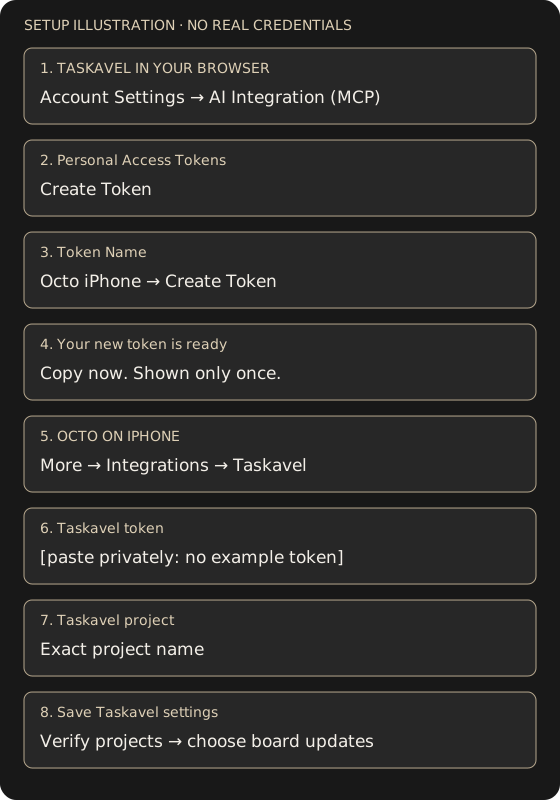
Open the token settings. In
Taskavel, open Account Settings → AI Integration
(MCP), or open
AI Integration settings
after signing in. Find Personal Access Tokens.
This is separate from project webhooks and OAuth
connected apps.
-
Create a token for Octo. Choose
Create Token. In Token Name, enter a
recognizable name such as Octo iPhone, then
choose Create Token. The form automatically
grants the mcp:full scope; you do not need to
find scope checkboxes. The token acts as your
account, within your project memberships and
roles.
-
Copy the token once. When Your
new token is ready appears, use its copy button.
Copy it before leaving: Taskavel will not show
the value again. Keep a backup only in secure
storage such as a password manager. Never
include it in screenshots, support messages or
shared documents.
-
Connect Octo. On iPhone, open
More → Integrations → Taskavel. Paste the value
into Taskavel token. In Taskavel project, enter
the exact project name for new tasks. Choose
Save Taskavel settings. The token field needs
the token, not your Taskavel password.
-
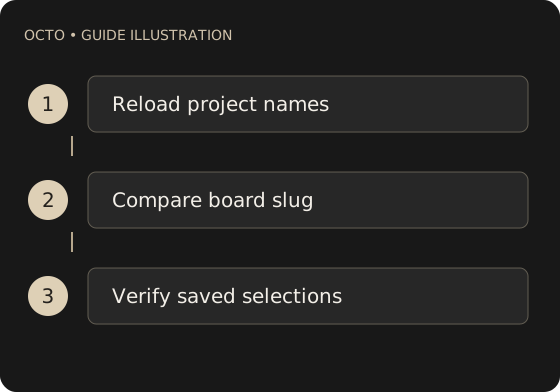
Verify and select updates. Wait
for Taskavel settings saved. Check that the Task
updates controls can load your authorized
projects and boards. Then follow
the board selection guide
to save your choices. Connecting Taskavel alone
does not choose notification boards.
What you should see
Octo
confirms settings were saved and loads your
authorized projects and boards. Saved board
selections remain a separate step.
If it does not work
If
settings are missing, sign in to Taskavel and use
the account settings link above. If you left before
copying the token, create another named token; the
old value cannot be displayed again. If Octo rejects
it, check for extra spaces, a revoked or expired
token, the exact project name and project
membership. Use Retry projects if discovery fails,
rather than saving an empty selection. If a token is
exposed, revoke its matching Personal Access Tokens
entry, create a replacement and update Octo.
Revocation stops clients using that token; do not
disconnect unrelated OAuth apps.
 octo